Ryan Charsville A2 Media
Adobe Premiere Pro CC
From the beginning of our constructions we had decided that Premiere Pro was going to be used as our main video editing software for the post production process of our video due to its improved functionality over iMovie. Premiere Pro offers improved functionality in terms of the way you edit videos such as the easy to understand timeline setup as well as the wide range of effects that can be applied to video clips on the timeline. This was a huge benefit that we took advantage of as Premiere Pro offers a large selections of video distortion and video corrections effects such as 'Warp Stabiliser' which is something that we used in our final cut as it allows a video to have increased image stabilisation. This was very useful for any shots that needed extra stabilisation due to any problems with sudden camera movements or shake.
I also had previous experience using Premiere Pro which helped with speeding up the process and made it so we didn't have to spend time finding out how to do certain things. Another huge factor as to why we chose to use Premiere Pro was because the software can handle the editing of 4K footage. This was a huge factor as we had planned to film 99% of our music video in 4K. Due to how much memory and data 4K footage contains it requires lots of computing power to be able to edit the footage with smooth playback which is an issue that we ran into when trying to edit footage straight from the camera.
Colour Correction and Grading
Another huge part of Premiere Pro we made use of is its ability to apply LUTs and colour correct and colour grade footage, this is the act of changing exposure, contrast or saturation of a single shot or selection of shots to give a shot a certain look or feel. In the end almost every shot in our final cut has been either colour corrected and colour graded. When colour correcting it is all about fixing any problems with the colour within a shot such as too much contrast or underexposing, this was done multiple times throughout the process to a selection of clips, after successfully colour correcting all of the footage, I would then move onto colour grading the footage this is the part where a certain look is applied to the footage. Before I colour graded the footage I thought about what kind of look I was going to try and achieve I decided to go with a saturated, medium contrast look to fit the narrative in terms of the boxing scenes as I wanted generally an image that would pop. Since we were shooting almost the entire video in 4K it provided us with lots of dynamic range to be able to colour grade the footage with getting any banding or any kind of distortion.
Adobe Media Encoder CC
Adobe Media Encoder is a software that allows compression, transcoding and exporting of different file formats, this means that is very useful for transcoding footage to different formats for many different reason such as decreasing the quality of the footage to allow a slower computer be able to playback the footage. This is something that we had to do for every single bit of footage for our video. Due to the computer that we would be using to edit our video it was apparent from shooting test footage that it could not handle the 4K footage from the camera that we would be using. So our only option of being able to edit the footage on the computer was to use a method called proxy editing.
Proxy editing is the method of getting footage that is high resolution such as 4K and transcoding that footage in Media Encoder to a lower resolution such as 720p, this then allows the computer to handle playback and editing of that footage. Transcoding, this is like having high quality footage creating a copy of that footage and making it in a very low resolution so its the same images just at a different resolution, this makes it so as mentioned a computer requires less computing power to be able to edit and playback the footage. This process was done for all of the footage that we used in our music video. The process of transcoding around 100 different 4k video files took us about 4/5 hours, even though it took a lot of our time it was allowing us to speed up the process of editing as we could achieve smooth playback of the footage.
Panasonic GH4 (Camera)
We wanted a high quality image for our video as it adds a sense of professionalism to the video, so as one of group members already owned a camera capable of 4K video recording so we decided to use that camera for the recording of the entire music video. The camera itself is a Mirrorless DSLR like camera that has a Micro Four Thirds sensor this means that it is limited in terms of the low light performance however it still does the job.
In terms of the video functionality it can record 3840x2160 UHD at 24p which is the settings that we used for most of the video, this being ultra high definition and also the standard frame rate used in film (24p). The camera also features some functions that helped myself when recording such as focus peaking this allows the user to clearly see the area that is in focus by showing the area shaded in green, this helped myself a lot when using manual focus for making sure that the footage was in focus. Throughout the shooting I used manual focus as using if I used autofocus it would result in problems with the focus point going in and out of focus frequently, this is why I decided to use manual focus as it allowed me to make sure that I knew what was in focus also the focus point would not change whilst recording.
I think in the end that the camera has provided us with a good looking image that also gives our video a professional look and makes our video more enjoyable to watch visually.
Stedicam
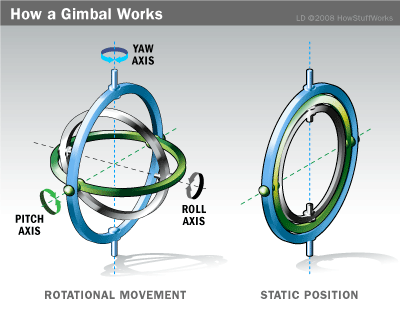
A stedicam is a rig that allows a camera to be on a gimbal system and uses counter weights keep the weight evenly distributed. This allows the camera to glide and this reduced the shake of hand movements and micro jitters. The stedicam was required as the camera and lens that was being used for the large majority of the video was unstabilised and if used without a rig micro jitters would show and the footage would become unusable.
The way a stedicam works is displayed with this image:
This system allows corrections of the different axises, this provides stable footage that doesn't require any post production effects applied to it. Using a stedicam proved difficult at times due to how the camera needs to be perfectly balanced and this take experience with use of stedicams to be able to correctly balance a stedicam, I did struggle at times getting the balance correct so it did sometimes show in the footage. Overall the stedicam had a hugely positive impact on the footage and the final product.